Version 1.29
This version of Coligo Desktop contains the following new features, improvements and bug fixes:
Introduction of Microsoft 365 Single Sign-On
Logging into Coligo DESKTOP has been made even easier. From now on, in addition to the regular login with your Operator web user, you can also log in with a Microsoft 365 account.
The following is required to log in with your Microsoft 365 account.

Logging in with your Microsoft 365 account must first be activated by your administrator. By default this is not active.
To log in via your Microsoft 365 account, the e-mail address linked to Coligo must exactly match the e-mail address you use to log in to Microsoft 365. If this is not the case yet, contact your administrator to change this. If this is already the case or your administrator has changed this, you can log in with Microsoft 365 as follows.
To log in to Coligo DESKTOP with your Microsoft 365 account
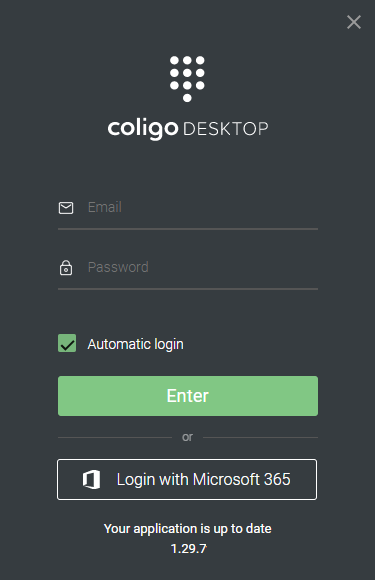
 The following screen appears:
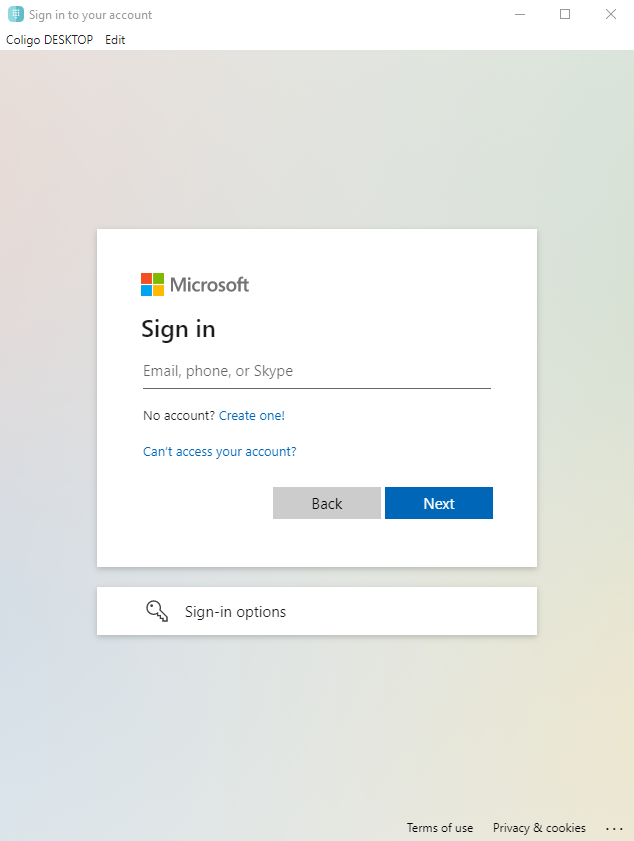 If all steps have been completed correctly, you have successfully logged in to Coligo DESKTOP.
Login to Microsoft 365 was not successful
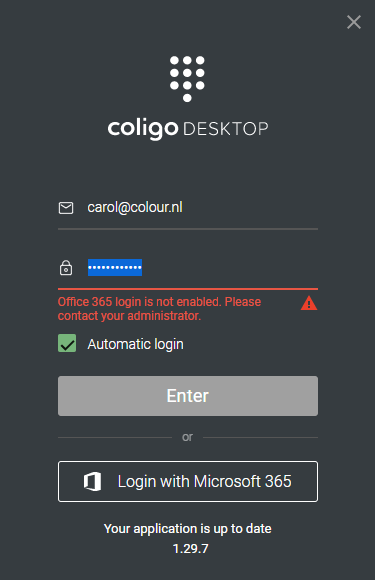
The most common reasons for not being able to log in successfully via Microsoft 365 are:
 Email address linked to Coligo and the email address of Microsoft 365 do not match Administrator has not yet activated login with Microsoft 365.
Tooltips
Also new in this version of Coligo DESKTOP is the addition of tooltips. Tooltips is informational text that appears when a user hovers the mouse pointer over an object.
See an example of this below:
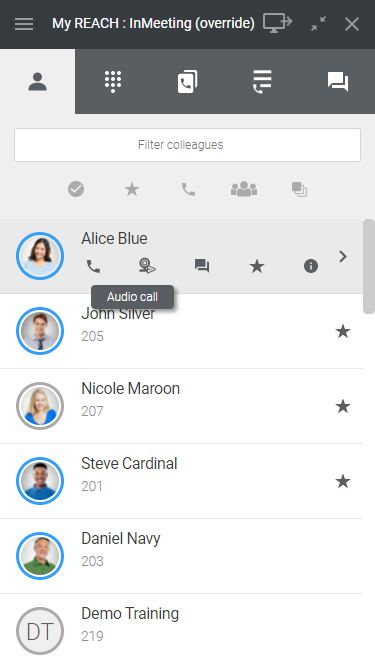
These tooltips have been added in the most prominent places to increase user-friendliness.
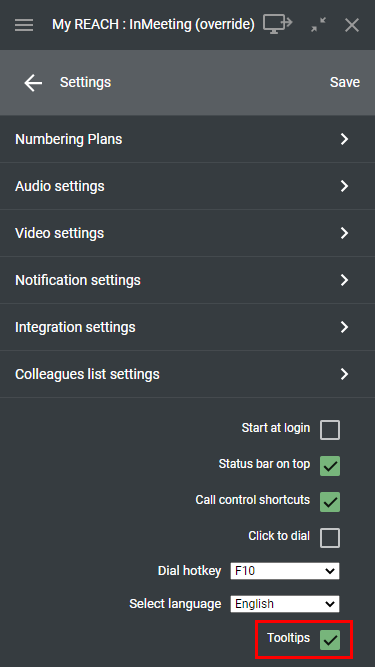
Tooltips are shown by default, but you can also disable them under Settings:
Other improvements
Manually entered destination during consulted transfer improved (manually entered destination was incidentally, mistakenly transferred blind). Some extensions cannot be Favorited. Inadvertently this option was shown for some extensions. This has been modified. Sporadically, an update procedure was started twice while updating Coligo DESKTOP. This caused complications when updating. This has been resolved. Sporadically, after logging in to Coligo DESKTOP, the Colleague list was not shown completely. This has been resolved. Coligo SWITCHBOARD – while setting up an outgoing call, Anonymous was incorrectly displayed instead of the called phone number. This has also been resolved. Last modified date: 07.14.2023